offset_pdf.py
It’s pivotal to ensure that your card fronts and backs are aligned. The front and back alignment is mainly determined by your printer, but it’s not always possible to calibrate it.
offset_pdf.py is a CLI tool that adds an offset to every other page in a PDF. This offset can compensate for the natural offset of your printer, allowing you to have good front and back alignment. It also supports an angle offset to correct for rotational misalignment.
Basic Usage
First, you must determine the offset by using the calibration sheets.
<paper size>_calibration.pdf has a front page and a back page.
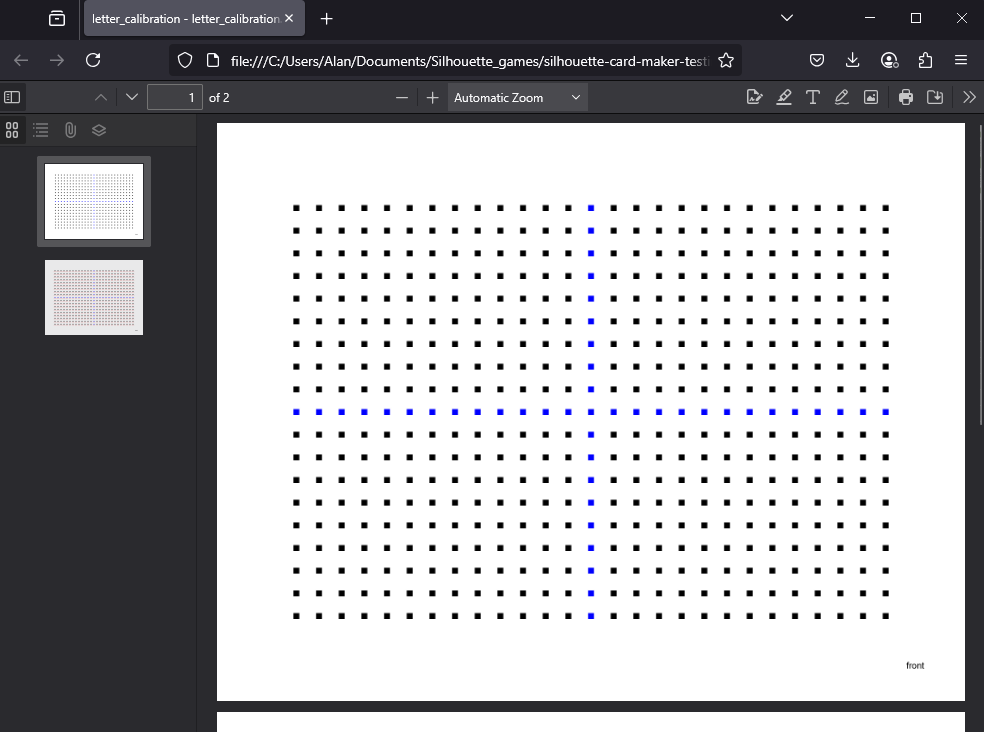
The front page is a simple grid of squares.
The back page is the same grid of squares, except each square has a slight offset. The following grid illustrates the applied offsets.
| (-2,  2) | (-1,  2) | ( 0,  2) | ( 1,  2) | ( 2,  2) |
--------------------------------------------------------
| (-2,  1) | (-1,  1) | ( 0,  1) | ( 1,  1) | ( 2,  1) |
--------------------------------------------------------
| (-2,  0) | (-1,  0) |  Center  | ( 1,  0) | ( 2,  0) |
--------------------------------------------------------
| (-2, -1) | (-1, -1) | ( 0, -1) | ( 1, -1) | ( 2, -1) |
--------------------------------------------------------
| (-2, -2) | (-1, -2) | ( 0, -2) | ( 1, -2) | ( 2, -2) |
To determine the required offset, print out <paper size>_calibration.pdf with the card stock you plan to use.
Shine a strong light on the front so you can see the shadows on the back. Determine which set of front and back squares are aligned. This set will provide your offset.
Create and start your virtual Python environment and install Python dependencies if you have not done so already. See here for more information.
A positive x value will move the back page to the right and a positive y value moves the back page up, relative to the back page’s orientation.
python offset_pdf.py --x_offset -5 --y_offset 10You can also apply an angle offset to correct for rotational misalignment. This will rotate all your back sheets clockwise in addition to offset.
python offset_pdf.py --x_offset -5 --y_offset 10 --angle 0.5Get your offset PDF at game/output/game_offset.pdf.
Large offset
If no square on your calibration sheet matches, then you’ll need to create a new calibration sheet with an arbitrary offset. After determining the offset using the offset calibration sheet, you can add the two offsets to determine your true offset.
To create an offset calibration sheet, use the --pdf_path option, targeting the calibration sheet of your paper size. For example:
python offset_pdf.py --pdf_path calibration/letter_calibration.pdf --x_offset 30 --y_offset -10This will produce calibration/letter_calibration_offset.pdf, which is the same as calibration sheet but with an offset of (30, -10).
Print this out and determine which set of front and back squares are aligned. If none are aligned, try generating another offset calibration sheet with a different arbitrary offset.
Let’s say there is a set of a front and back squares and the offset is (5, 5). You can add the arbitrary offset with this offset to find the true offset.
(30, -10) + (5, 5) = (35, -5)The true offset if (35, -5).
You can verify this is true by generating a offset calibration sheet using this offset.
python offset_pdf.py --pdf_path calibration/letter_calibration.pdf --x_offset 35 --y_offset -5Print this out and the center set of front and back squares, (0, 0), should be aligned.
Save Offset
You can save your x, y, and angle offset with the --save option. After saving your offset, it’ll be automatically applied every time you run offset_pdf.py. You can override the loaded offset using --x_offset, --y_offset, and --angle.
python offset_pdf.py --x_offset -5 --y_offset 10 --angle 0.5 --saveAdditionally, you can automatically apply a saved offset in create_pdf.py by using the --load_offset option.
python create_pdf.py --load_offsetCLI Options
Usage: offset_pdf.py [OPTIONS]

Options:
  --pdf_path TEXT         Path of the input PDF.
  --output_pdf_path TEXT  Desired path of the offset PDF.
  -x, --x_offset INTEGER  X-axis offset, relative to back page orientation
                          (positive = right, negative = left).
  -y, --y_offset INTEGER  Y-axis offset, relative to back page orientation
                          (positive = up, negative = down).
  -a, --angle FLOAT       Angle offset in degrees (positive = clockwise).
  -s, --save              Save offset values.
  --ppi INTEGER RANGE     Pixels per inch (PPI) when generating offset PDF.
                          [default: 300; x>=0]
  --help                  Show this message and exit.